Expand any image to the frame it needs to fit
Your shot is right and the shape is wrong — a square listing, a 9:16 story, a 16:9 thumbnail. Pick the target ratio and AI extends the scene outward; the subject, lighting and everything you framed stay exactly where they are.
Drop an image here, or select a file
JPG · PNG · WEBP · up to 15 MB
Expanded images — before and after
Every result below came straight out of the tool, with no touch-ups. Drag the handle to see what AI painted beyond the frame, then drop your own photo at the top of the page.
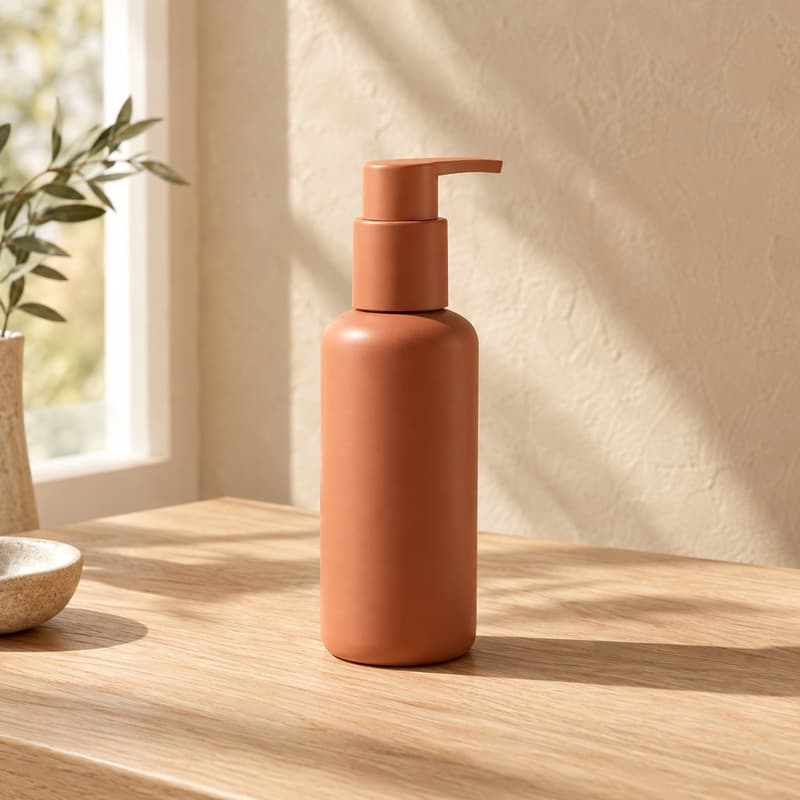
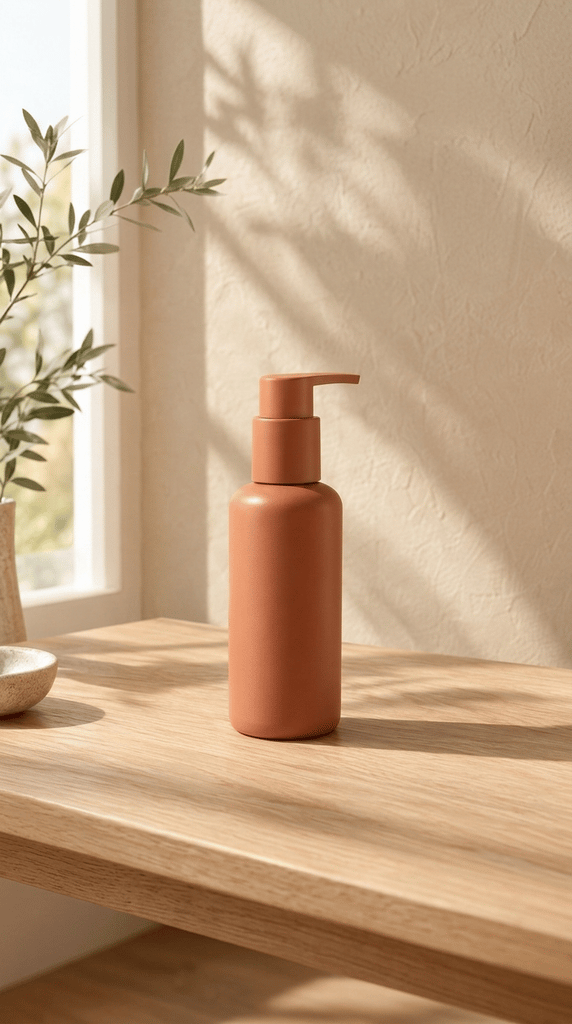
Square product shot expanded to 9:16
Bottle and label untouched — the table and wall carry on
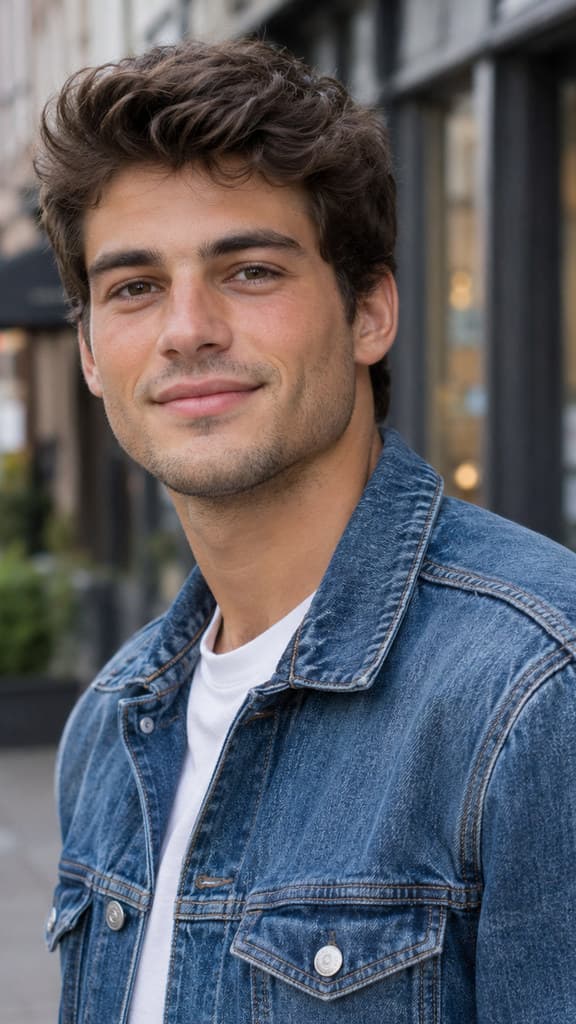
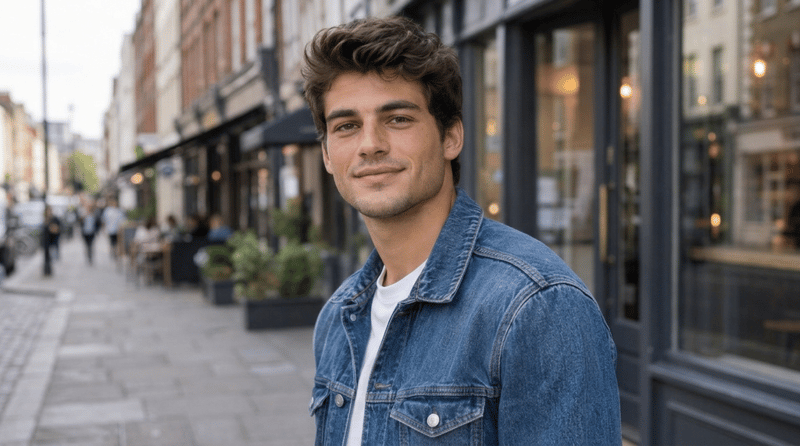
Vertical portrait expanded to 16:9
Face stays sharp — the street opens up on both sides
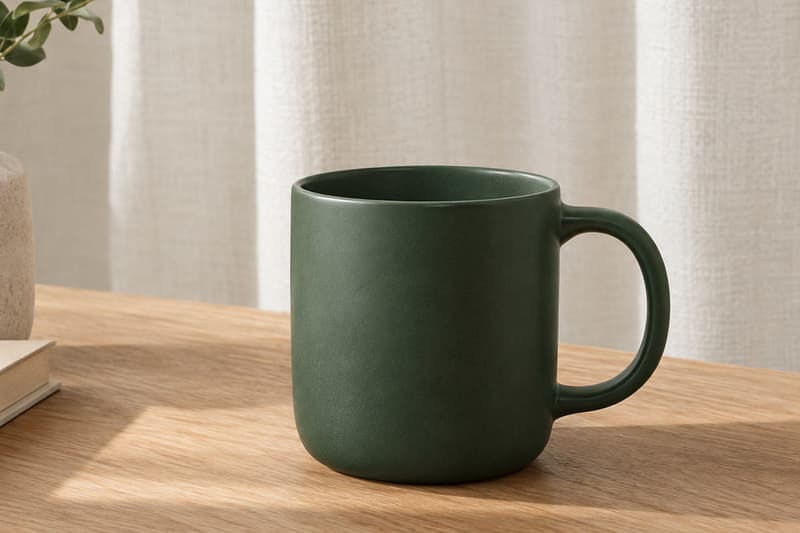
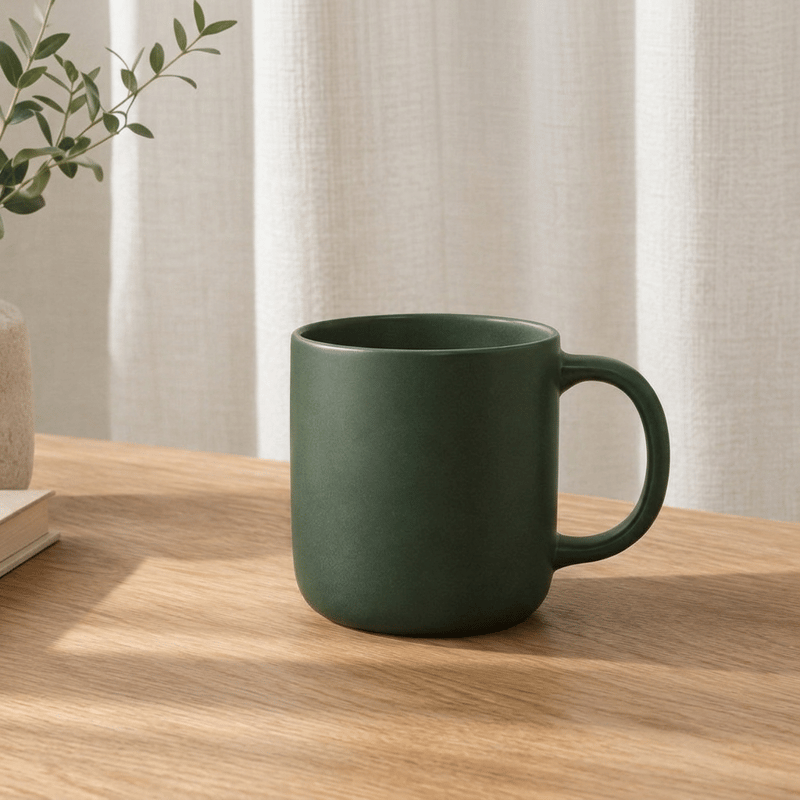
Wide product shot expanded to square
Product and shadow intact, the surface continues
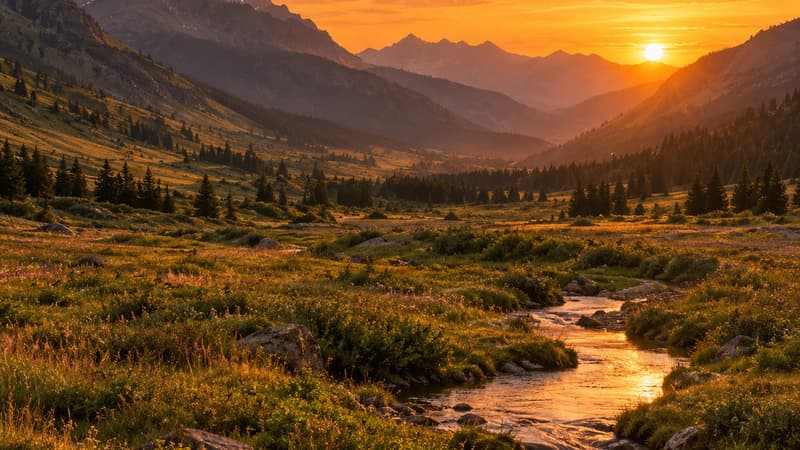
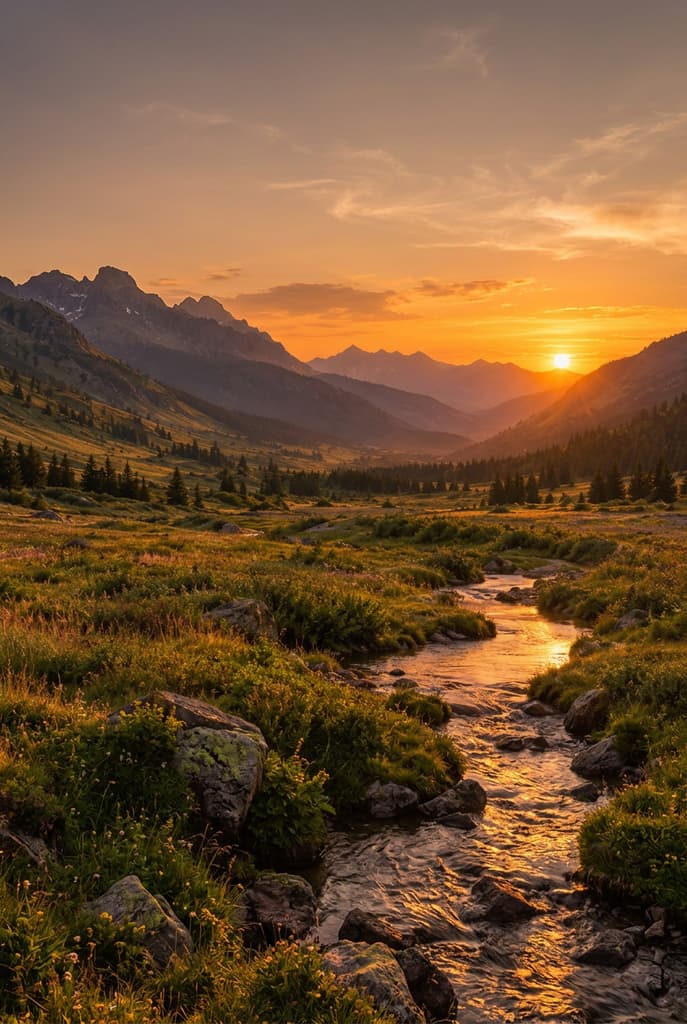
Landscape expanded to a 2:3 poster
Sky and ground extend without a second horizon
What this AI image extender does
It takes an image that is the right shot in the wrong shape and expands it to the ratio you pick. Everything inside your frame stays in place, and the scene continues naturally beyond its edges: backgrounds carry outward, objects cut off at the border complete, lighting stays consistent. Nothing is cropped, stretched or padded with blur.
Reach for it when the picture has to fit somewhere: a product photo for a square marketplace listing, a landscape for a 9:16 story, a portrait for a 16:9 thumbnail, a screenshot that needs breathing room around the subject. One honest note: expanding paints plausible new content beyond the border — it does not recover what was originally cut away. Check the before/after slider before you publish. Need the result bigger? The Image Upscaler takes it to 4K.
An expanded image usually wants to go somewhere: keep working on it in the AI Image Generator, or set the subject in a new scene with the AI Background Generator. Want to win back a frame that was cropped too tight? That job has its own page: Uncrop. New to the ratio names? The glossary explains each one.
Need to change something inside a photo you already have? The AI image editor edits the image itself — swap a background, remove an object, or restyle it.
Image expander specifications
| Parameter | Value | Notes |
|---|---|---|
| Input | JPEG, PNG, WEBP · up to 15 MB | Any photo or graphic — portraits, product shots, landscapes, screenshots. .jpg and .jpeg are both fine. |
| Output | PNG · your chosen ratio · about 1K | PNG at the ratio you picked, about 1K on the long side — sized for listings, stories, thumbnails and wallpapers. |
| Target ratio | 1:1 · 3:4 · 4:3 · 9:16 · 16:9 · 2:3 · 3:2 | Seven presets from square 1:1 to wide 16:9 — square for listings and feeds, vertical for stories, wide for thumbnails. |
| Credits | 16 credits per image · no daily cap | Charged per image when you submit — the same price to any ratio, with no daily cap. |
| Result retention | 7–365 days by plan | Results stay downloadable for the retention window of your plan, then are deleted from storage. |
| On failure | Credits refunded automatically | If an image cannot be processed, the credits for that image are returned to your balance automatically. |
How to expand an image
From the wrong shape to the frame it needs
Add your photo
Drag it in, paste from the clipboard or click anywhere on the drop area. Portraits, product shots, landscapes and screenshots all work; the sharper the source, the cleaner the extension.
Pick the target ratio
Seven presets from square 1:1 to wide 16:9. The price is shown before you run anything.
Compare and download
Every result comes back as a before/after slider, so you can inspect the new edges up close. Download the PNG, or send it on to AI Image or AI Video without leaving the site.
Image expander — FAQ
Credits, ratios, and what happens to your original