You have a video. You want it to say something else.
Maybe it's a product clip that needs a new voiceover, a founder video that should exist in five languages, or a meme that would be funnier with your own words in it. A few years ago, this meant booking a recording studio and a VFX budget. Today it means uploading the clip and waiting about a minute.
While building our own lip sync tool, we ran hundreds of clips through it — clean studio takes, shaky phone footage, animated characters, old archive footage. This guide is what we learned: the three ways AI lip sync actually works, how to do it step by step, and the rules for footage and audio that decide whether the lips match the audio or the result lands right in the uncanny valley.
The three ways to lip sync a video with AI
"Lip sync AI" covers three very different jobs, and picking the wrong one is the most common mistake:
1. Generate a talking character from a text prompt. You describe a person, and the model generates someone speaking your lines. Good when no footage exists at all — but you get whatever performance the model feels like giving, and you can't use your clip.
2. Photo + audio → talking avatar. A still portrait starts speaking your audio. Great for presenters, mascots and characters that were never filmed. Less great when you need real body movement — the result is mostly a talking head.
3. Video + new audio → re-dub the clip you already have. The AI keeps the original performance — the camera, the lighting, the expressions, the gestures — and re-renders only the lip movements so they follow a new voice track. This is the one to pick when the footage is already right and only the words are wrong: a new language, a new script, a voiceover that needs replacing.
The rest of this guide is about the third way, because it's the one with the most going on under the hood — and the one our tool is built for.
How to lip sync a video with a new voice, step by step
Step 1: Upload your clip. MP4 or MOV, up to 100 MB, anywhere from 2 seconds to 2 minutes. One clear face per shot works best — more on shot selection below.
Step 2: Give it a voice. Two options. Drop in an audio file (MP3, WAV, M4A or AAC), or type your script and turn it into speech right there — the text-to-speech is free, with voice options in forty languages, adjustable speed, and unlimited previews before you commit. Type a 200-character script, listen to it in three different voices, and you'll know which one fits. Costs nothing, takes a minute.
Step 3: Run it and compare. The price is calculated before you submit — 8 credits per second of video, so a ten-second clip costs 80 credits, and failed runs are refunded automatically. The result plays side by side with the original in a before/after slider. Watch the mouth on stressed syllables — that's where bad sync shows up first. If it lands, download the MP4.
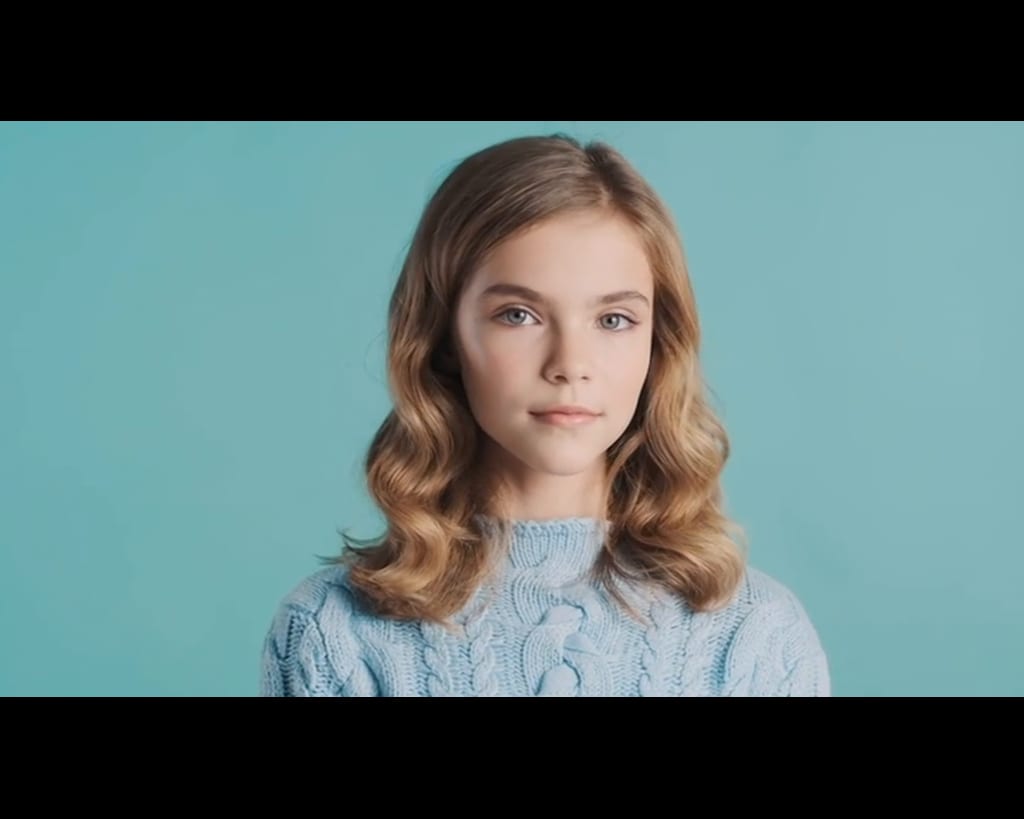
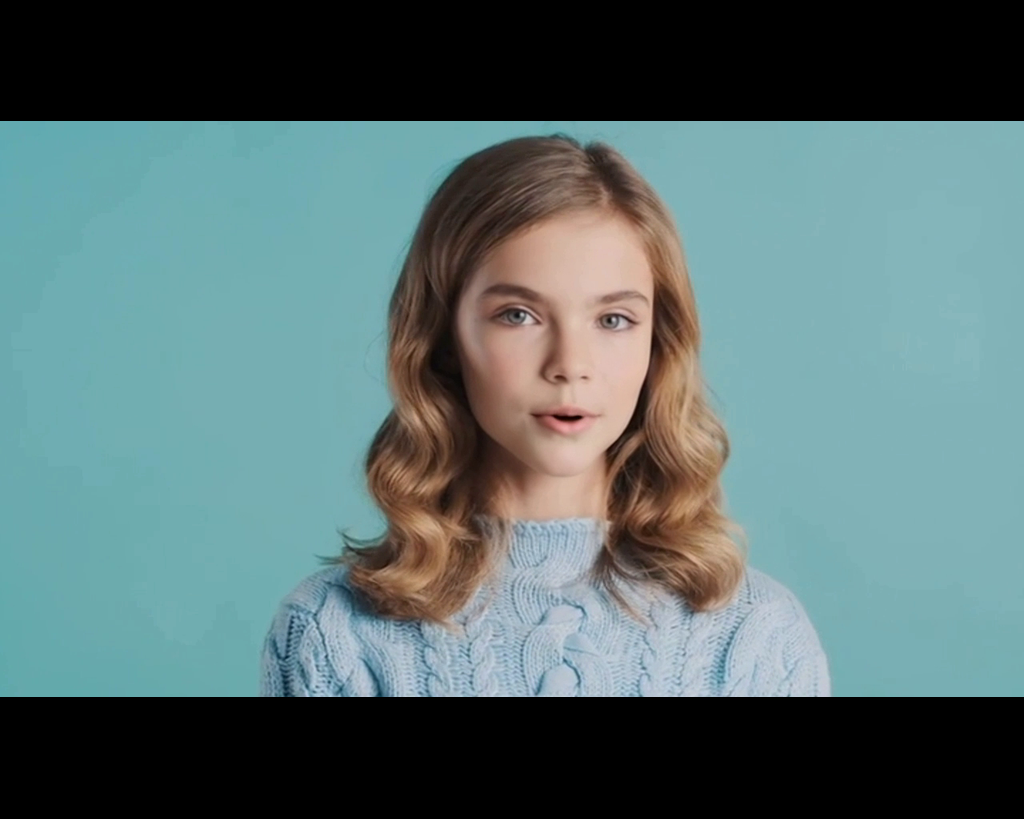
One detail worth knowing: the audio has to match the length of the video. If your track runs longer than the clip, the job is rejected before it starts and you'll be asked to trim first — no credits are spent. A shorter track just covers the beginning of the clip.
The shot rules that make or break lip sync
The AI re-renders lips. It can't invent a mouth it can't see. After hundreds of runs, the pattern is consistent:
Works:
- One person, facing the camera
- Face clear and well lit
- Mouth visible and uncovered
- Steady shots with little motion blur
Fails or glitches:
- Profile angles and turned-away faces
- Hands, microphones or masks over the mouth
- Several people talking in one shot
- Fast cuts, heavy motion, low-quality source footage
The rule that matters most is the first one: use a clip where the face is looking straight at the camera. A mediocre script on a clean frontal shot beats a great script on a profile shot every time.
The audio rules
One speaker per track. The model maps one voice to one mouth. Overlapping voices, background chatter and duets confuse it — the lips move on the wrong syllables, or jump from one face to another.
Clean audio beats a dramatic take. Heavy background music, echo and room noise all eat into the consonants the sync is built from. A plain voice memo recorded in a quiet room beats a "professional" take with reverb.
Match the length of the clip. Record or generate the voiceover to roughly the length of the video. Too long, and you'll be asked to trim before anything runs; too short, and the lips simply stop moving when the voice ends — sometimes that's exactly what you want.
What people actually use it for
Dub a video into another language. Record or generate the voiceover in the new language, run the lip sync, and the speaker looks like they're actually saying it in that language. For full translation workflows — speech recognition, translation, voice, sync — our video translator handles every step; lip sync is the last one, the step that makes the dub watchable.
Fix audio that's out of sync. Interview footage where the track drifted, screen recordings with lag — lay the same voice back in, correctly aligned.
Make a character speak your script. Mascots, animated characters, AI-generated presenters: if there's a clear face, it can deliver your lines. Animated faces sync just as reliably as real ones.
Localize short-form content. A fifteen-second clip dubbed into three languages with native-sounding voices is an afternoon, not a localization vendor.
FAQ
Does lip sync change the person's face? No. The face, expression, lighting and camera stay exactly as they were — only the lip region is re-rendered, frame by frame, to match the new audio. The person still looks like themselves; they just convincingly say different words.
How long can my video be? From 2 seconds to 2 minutes per run. For longer material, cut the segment that matters and sync that — billing is per second, so shorter is cheaper too.
What does it cost? 8 credits per second of video — a ten-second clip is 80 credits. The exact price always shows up before you submit, and failed runs are refunded automatically. The text-to-speech step costs nothing.
Can I use my own voice? Yes — upload any recording you have the rights to use. Only sync voices and footage you're authorized to use: cloning someone's voice or likeness without permission is off-limits, full stop.
Does it work on animated characters? Yes. Cartoons, anime and illustrated characters follow the same rules as real faces: one clear face, a visible mouth, clean audio.
Ready to hear your clip say something new? Lip sync your video — upload, give it a voice, and watch the mouth catch up.